Tesla Paint Shop · Cybertruck

Cybertruck wraps

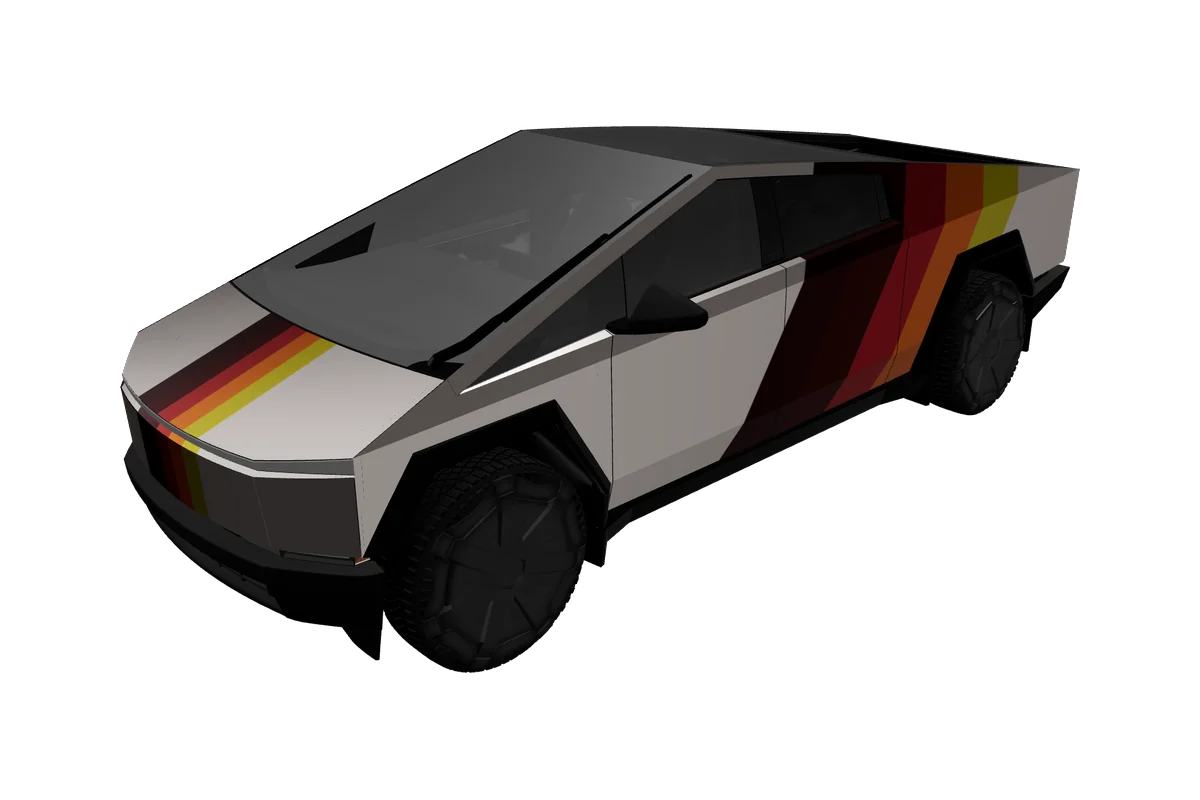
Browse Cybertruck wrap concepts designed for angular stainless-steel panels, preview them in 3D, and download the configured Paint Shop PNG for your vehicle.

Choose your Cybertruck variant
Cybertruck Tesla vehicle preview

Paint Shop gallery

Tesla Cybertruck wrap designs

0 designs

Cybertruck Tesla vehicle preview

No Cybertruck designs yet

Start with the matching vehicle template and make the first design for this gallery.

Design a Cybertruck wrap

Why it matters

What makes Cybertruck wraps different

Body shape

Cybertruck’s visual language is unusually angular: broad, relatively flat stainless-steel surfaces meet at sharp folds, a wedge-shaped front, and a distinctive trapezoidal side profile. That geometry invites large blocks, hard-edged color fields, and high-contrast graphics. It also makes alignment especially visible. A stripe crossing a fold can look deliberate in one view and abruptly broken in another, so rotate the preview and inspect transitions instead of judging the side panel alone.

Generations & variants

The current vehicle configuration exposes a dedicated Cybertruck template, separate from the Model 3, Y, S, and X families. The proportions and surface breaks differ substantially from those sedans and crossovers, so a design built for another series should not be treated as a fit. Start with the Cybertruck chip, then work from a Cybertruck card or open the editor with the Cybertruck vehicle selected. This is the safest way to keep the illustration mapped to the relevant shape.

Placing graphics

Large typography, geometric camouflage, broad racing numbers, and simple two-color compositions are useful experiments for the planar-looking sides. Strong color contrast can make the wedge profile more visible, while a design that follows the body’s diagonal lines can reinforce its shape. These are creative directions to test, not claims about Cybertruck owner preferences. Fine, curved ornaments may need extra attention because they cross angular panel boundaries.

Template to car

From flat template to your Cybertruck
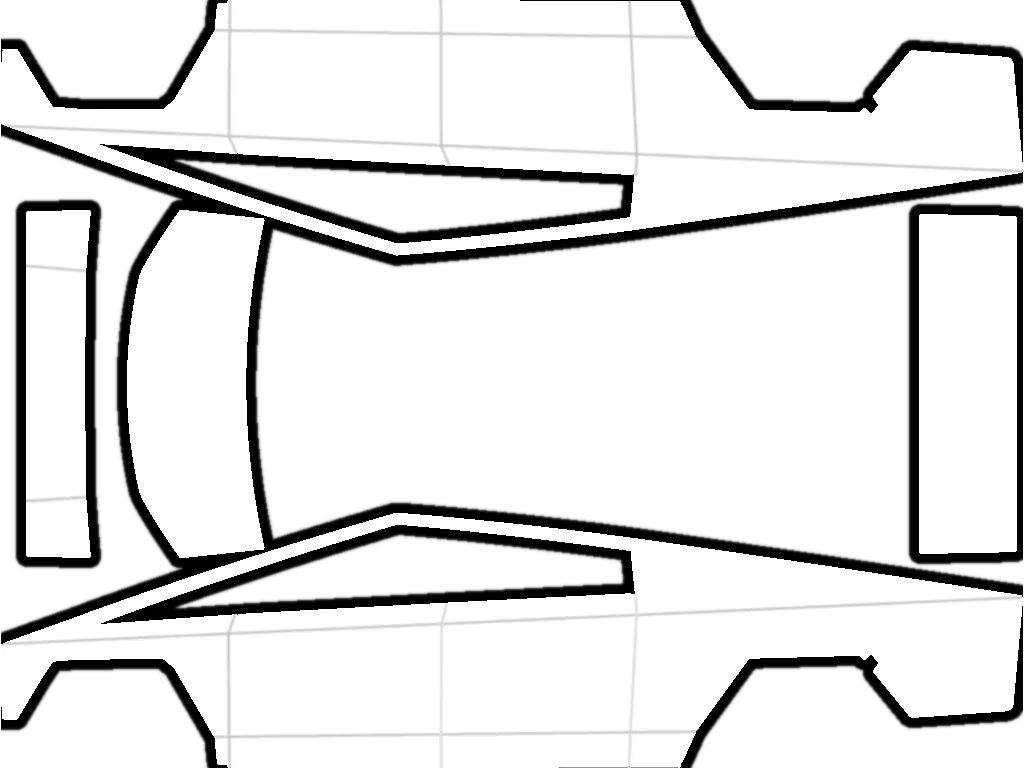
Cybertruck flat Paint Shop templateCybertruck Tesla vehicle preview

The flat template maps to the matching body panels, while the 3D preview helps you check balance, seams, and detail before export.

Paint Shop export

Cybertruck Paint Shop template and export

VariantsCybertruck
Canvas1024 × 768
FormatPNG
File sizeUnder 1 MB (1,048,576 bytes)
USB folderWraps
In the carToybox → Paint Shop → Wraps

Unlike the square configurations for the other listed vehicles, the Cybertruck export is configured as 1024 × 768 with a 1,048,576-byte (1 MiB) maximum. Preserve this landscape canvas when downloading; do not square-crop or recompress it. The PNG is a digital appearance texture for the Paint Shop workflow, not a physical wrap cut file or a material specification for stainless steel.

The installation guide explains the USB Wraps folder and the Toybox/Paint Shop steps. Keep the original export intact and let the vehicle present its own available options. If the in-car feature is missing, or if you need to confirm a specific configuration, consult /compatibility rather than assuming a universal rollout. The editor preview helps you assess artwork placement; it cannot guarantee physical color or reflectivity on the real metal body.

A clear path to export

How to make a Cybertruck wrap
01

Choose the variant

Select Cybertruck first, then browse the designs filtered for that series.

02

Edit in Studio

Existing gallery work can be downloaded in one click; choose Open in Studio to change the composition, or start a fresh design in the editor with the vehicle preselected. Examine the preview from the side, front, and rear angles.

03

Check 3D and PNG

Pay close attention to diagonal folds and the boundary between the cab and bed, where continuous shapes can appear interrupted. Switch to the flat PNG and check the artwork against the template before exporting.

04

Download and install

When ready, download the original 1024 × 768 file, copy it to a USB drive’s Wraps folder, and follow Toybox/Paint Shop instructions from the install guide. Use the compatibility page for cautious model-support guidance and the car’s prompts for the final steps.

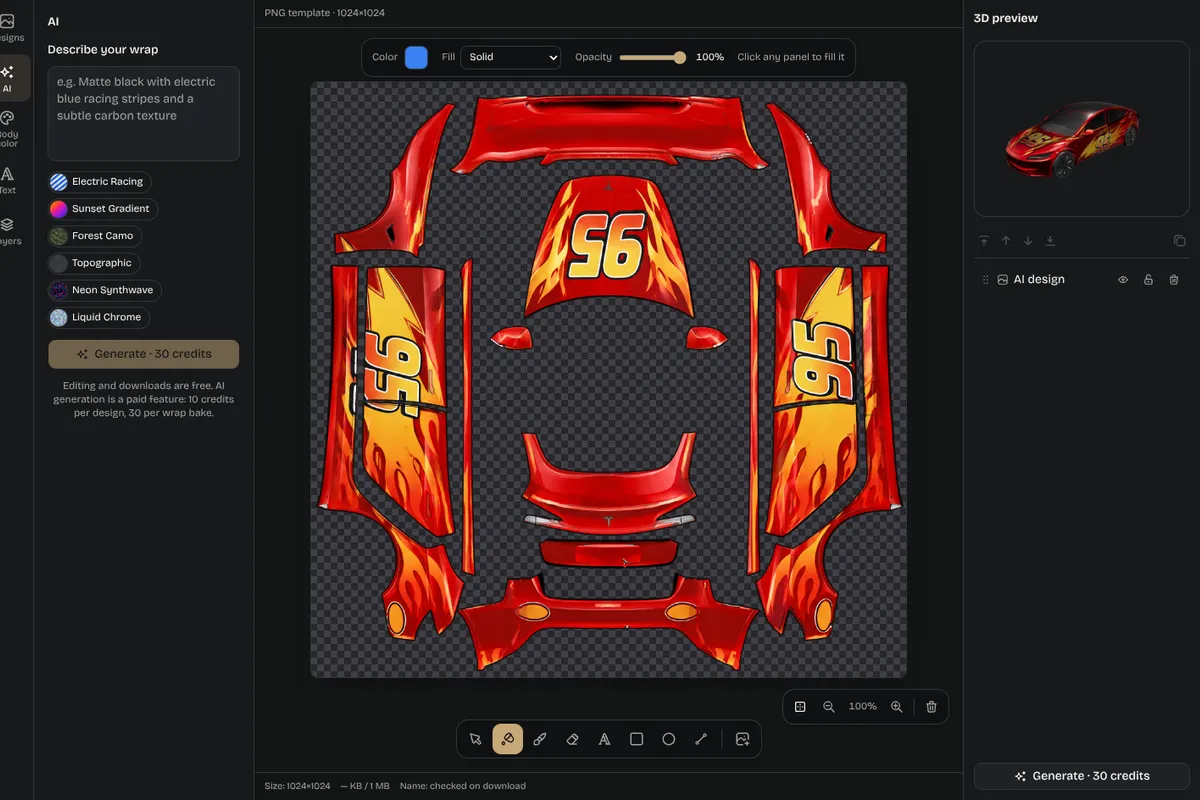
Editor screenshot with layers panel and 3D preview

Inspiration

Cybertruck design ideas

Idea 01

A broad diagonal can echo the wedge profile; a centered number panel can use the large side area without crowding it; and a minimal monochrome treatment can make the body folds the main visual feature. For a more expressive result, compare racing colors, comic-style art, or a blocky pixel motif against the stainless-steel-inspired preview. Keep essential copy large enough to read and avoid putting a logo exactly where a sharp boundary divides the panel.

Idea 02

Because the Cybertruck canvas is landscape, check that the composition uses the full width intentionally rather than leaving an accidental empty band. A 3D preview is valuable for judging how the flat artwork wraps over the cab and bed, while the PNG view reveals the actual canvas edges. Iterate on both views before using the USB workflow.

Composition notes

Planning graphics around Cybertruck panels

01

Cybertruck artwork benefits from a deliberate relationship with the folds. One approach is to align a strong diagonal with the body’s own angles; another is to contrast the straight panel breaks with a single oversized circular or organic shape. Either can work as a digital concept, but inspect the front and rear views to ensure the chosen direction feels consistent. The broad side makes oversized numbers and simple marks legible, while several small badges can disappear into visual noise. If you use typography, check its scale on both the flat export and the 3D vehicle.

02

The page’s design grid is limited to Cybertruck entries by series, which helps avoid mixing these proportions with a sedan or crossover. When you want to borrow a visual idea from a different gallery design, open it as inspiration and create or edit a version with Cybertruck selected. Confirm the vehicle in Studio before making changes. This extra glance is worthwhile because the landscape canvas and angular mapping are not the same as the square files used for the other configured vehicles.

03

Take care with borders that meet a panel crease. A narrow outline placed exactly on a fold may appear to break into separate segments, while a broad field can make the geometry feel more intentional. Check the side, front, and rear angles, then inspect the 1024 × 768 PNG to verify nothing important is clipped at the canvas boundary. Keep the original download intact for the USB flow; if a new edit changes the canvas or you are unsure whether the car accepts it, consult the install and compatibility guides before trying another file.

Pick your model

Explore more Tesla wrap designs
Good to know

Frequently asked questions

Start designing

Ready to design your Cybertruck wrap?